
Microsoft Ignite 2017 Bags and Shirt Revealed!
For those that are going to the Microsoft Ignite 2017 conference in Orlando, FL here’s the new bags !


More info here!
More info here!
SharePoint 2016 Application pool issues with new SCOM 2016 Agent
Recently I discovered that the SCOM 2016 agent crashes SharePoint 2016 sites.
Error: Server Error in ‘/’ Application Runtime error

Tasks I performed trying to correct the issue;
1. Changed Central Admin site web.config and turned Legacy mode off. (This worked as expected but... Microsoft doesn't support this scenario)

2. Installed Update Rollup 3 for SCOM 2016 but not luck as they still have the issue.
3. Uninstalled the SCOM 2016 agent and everything came back up as expected but no monitoring which is not acceptable for a critical system like this.
Workaround/Temporary Resolution
Re-installed the SCOM 2016 agent via command line utilizing the following command msiexec.exe /i momagent.msi NOAPM=1 which disables/removes the SCOM APM module which breaks SharePoint (.Net/IIS modules)
![clip_image001[8]](https://blogger.googleusercontent.com/img/b/R29vZ2xl/AVvXsEiEZ_hwaYtnTKz_od0M4SK84E0np6Xiu2n2t7nL9Zr8p_mK2CPUvvLRORgi4aTeNvCLCTtpBYfPX5RNPdSVkkQ2SLRz4K6WTS1tpN2ETOPkyWuUxFZgnS7lhgZkAGurcvZXhlIeqkSa-qUI/?imgmax=800 "clip_image001[8]")
APM service removed.

After removing the APM module everything worked as expected.

How to Install Update Rollup 3 on Service Manager 2016 step by step
How to Install Update Rollup 3 on Service Manager 2016 step by step
Issues that are fixed on this rollup
- System Center 2016 Service Manager now supports Microsoft SQL Server 2016 Service Pack 1.
- Extending a class and adding a new property that has a default value causes Active Directory (AD) and System Center Configuration Manager (SCCM) connectors to create incorrect relationships for the extended class objects. This update fixes this problem for subsequent connector syncs, but the already existing incorrect relationships require manual update.
- The file name extension of an attachment uploaded from the Self Service Portal changes when viewed from the Service Manager console.
- Submitting a Request Offering fails in the Self Service Portal if the description form element contains “<” or “>” characters.
- Self Service Portal fails to honor the attachment file size restriction specified in the Service Manager console settings.
- The Request Offering page in Self Service Portal fails to load if that Request Offering contains a list form element with ServiceRequestSupportGroupEnum enumeration list.
Before you start
- Make sure your server is health and not showing any DW issues.
- Download required files from MS site.
Install order
- Data Warehouse Server
- Primary Management Server
- Any secondary MS
- Portal Server if installed.
Installing
- Right click on the downloaded CU file and run as administrator on the DW Server, Accept License terms then click on Install.

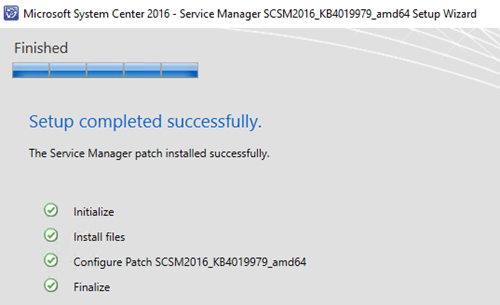
- After DW is completed go to primary MS, same process but make sure console and portal are closed.
- After the primary and secondary servers are completed, restart all the servers and that's it.
https://support.microsoft.com/en-us/help/4019979/update-rollup-3-for-system-center-2016-service-manager
Service Manager (SCSM) 2016 not displaying Reports via Console (How to fix it)
Service Manager (SCSM) 2016 not displaying Reports via Console

If you are here is because you have deployed your 2012/2016 environment and you realize that your Reports are not visible/accessible via the SCSM Console.
Problem/Symptom
On the Management Server saw this error under the Operations Manager Log.Source: Console Operations
Event ID: 33569
Cannot connect to SQL Reporting Services Server. Message= An unexpected error occured while connecting to SQL Reporting Services server: System.Net.WebException: The request failed with HTTP status 401: Unauthorized.at System.Web.Services.Protocols.SoapHttpClientProtocol.ReadResponse(SoapClientMessage message, WebResponse response, Stream responseStream, Boolean asyncCall) at System.Web.Services.Protocols.SoapHttpClientProtocol.Invoke(String methodName, Object[] parameters)at Microsoft.EnterpriseManagement.Reporting.ReportingService.ReportingService2005.FindItems(String Folder, BooleanOperatorEnum BooleanOperator, SearchCondition[] Conditions at Microsoft.EnterpriseManagement.Reporting.EnterpriseReporting.FindItems(String searchPath, IList`1 criteria, Boolean And)at Microsoft.EnterpriseManagement.Reporting.EnterpriseReporting.FindItems(String itemPath)at Microsoft.EnterpriseManagement.Reporting.EnterpriseReporting.FindItem(String itemPath, ItemTypeEnum[] desiredTypes) at Microsoft.EnterpriseManagement.Reporting.EnterpriseReporting.GetFolder(String path) at Microsoft.EnterpriseManagement.Reporting.EnterpriseReportingGroup.Initialize()at Microsoft.EnterpriseManagement.Reporting.ServiceManagerReportingGroup..ctor(DataWarehouseManagementGroup managementGroup, String reportingServerURL, String reportsFolderPath, NetworkCredential credentials) at Microsoft.EnterpriseManagement.Reporting.ServiceManagerReportingGroup..ctor(DataWarehouseManagementGroup managementGroup, String reportingServerURL, String reportsFolderPath) at Microsoft.EnterpriseManagement.UI.SdkDataAccess.ManagementGroupServerSession.TryConnectToReportingManagementGroup() Remediation = Please contact your Administrator.

Resolution
If you are getting this error is because you haven register the SPN’s and delegated the appropiate permissions to Service Manager and Reporting Services.Open Command Line as administrator on the Management Server
Run the following commands:
This command will set the appropriate SPNs that are needed for SCSM and SSRS.
Setspn -A HTTP/SCSMDWSERVER.domain.com DOMAIN\SCSMServiceaccount
To list the SPNs
Setspn –L DOMAIN\SCSMServiceaccount

This link below also includes all the SPN/Kerberos and Reporting Services
https://msdn.microsoft.com/en-us/library/ff679930.aspx
How to Remove SSRS Reporting Services Native on SQL Server 2016 Step by Step
Before you Start
Make sure you are not impacting any production services.Step by Step
Go to your Add Remove Programs (or Appwiz.cpl on the search) then search for SQL Server 2016 and select uninstall/change.
On the Uninstall wizard choose Remove.

Select the instance you would like to remove and then Next.

On the Select Features page, Select Reporting Services - Native then Next.

On the Ready to Remove page, review and then click on Remove.

On the Complete page, review close and then Restart the Server.

That's it you have now removed SSRS on a SQL server 2016.
How to upgrade Configuration Manager Current Branch SCCM 1606/1610 to 1702 in-console step by step
How to upgrade Configuration Manager Current Branch SCCM 1606/1610 to 1702 in-console step by step
I you have already migrated to SCCM Current branch you might be experiencing some issues. This new update fixes about 3K+ issues. More info click hereBefore you start
Make sure you have a valid backup of your Server and CM DB.Deploy in your Lab/Dev site first.
Read carefully as you might impact your production environment.
-
Step by Step
- Go to the Configuration Manager Console, Administration workspace, Cloud Services then Updates and Services.

- Run the prerequisite check and make sure is passed then click on Install Update Pack.
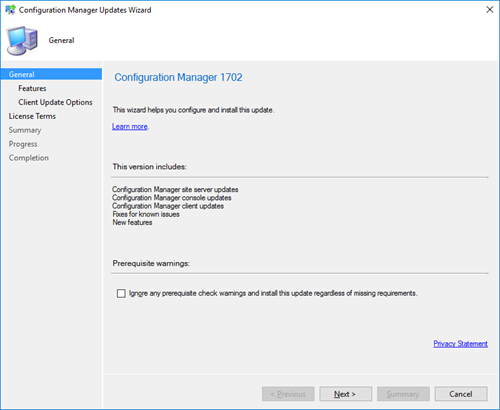
- Select any required feature and Next.
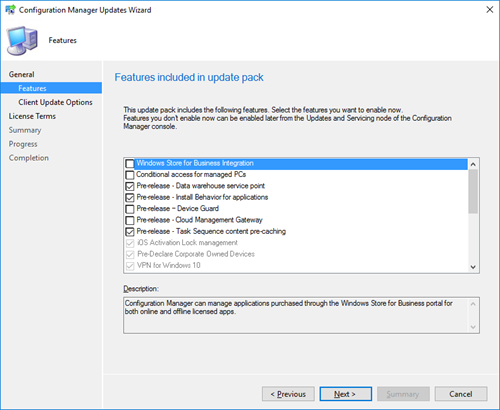
- On the Upgrade validation select the update setting and Next.

- On the License Terms acceptance page, review then Next.

- On the Summary Page, select Install.
- After Scheduling the installation you should be able to go into the Monitoring Tab, Updates and Servicing status workspace and see how the installation is progressing.


- After installing make sure you update the console and then check the installed version by going to the Console then About.

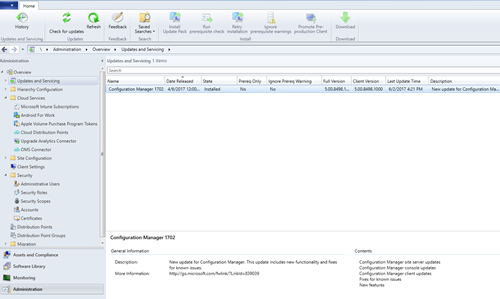
That's it you have now upgraded your SCCM to 1702 by utilizing the in-console updates.
How to Deploy DHCP Failover on Windows Server 2016 step by step
How to Deploy DHCP Failover on Windows Server 2016
The (DHCP) failover in Windows Server 2016 enables high availability of DHCP services by synchronizing IP address lease information between two DHCP servers ensuring continuous availability of DHCP service to clients.Previous Posts on DHCP Services Role:
- How to Deploy DHCP Services Role on Windows Server 2016
- How to create a DHCP Scope on Windows Server 2016 step by step
Prerequisites:
- 2 Windows 2012/16 Servers with DHCP Role installed and authorized.
- Scopes defined and configured.
Planned Topology

Creating a DHCP Failover Cluster step by step
Go to your DHCP Management Console, expand your DHCP server, IPv4 the right click and select Configure Failover…![clip_image001[8]](https://blogger.googleusercontent.com/img/b/R29vZ2xl/AVvXsEg1-qGwdm6PgYfE9Cef22QUon23zGVrfgkgYLxhf7UkZ3jmh2g_rO8hNFteAYK2hII-MpQRQxvcxum9m3MyfAFv27jEGbADFL3pv8VHE5FW6rA0ZVTMjhesUW_ywTHS4u4WTzKRy4qqf3Kf/?imgmax=800 "clip_image001[8]")
On the Configure Failover page, select the Scopes you will like to add into the cluster then Next.
In my case I will start with one and then add more as I go.

On the Partner server page, select the secondary DHCP Server then Next.


On the Failover relationship page, select Mode Load Balance or Hot standby, set Secret(My pass: secret) and adjust if necessary then Next.
Note: In this example I have configured to Load Balance.

Click on Finish to complete your first DHCP Failover.

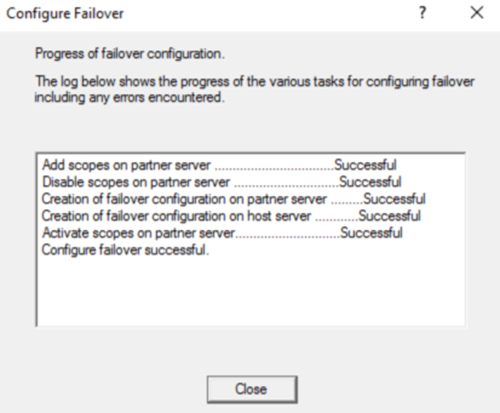
Confirm the replicated scope is now visible on the HA DHCP Server and also confirm on a client machine by unitizing ipconfig/all to verify the active DHCP server.

That's it you have now configured your first DHCP Failover cluster.
How to create a DHCP Scope on Windows Server 2016 step by step
How to create a DHCP Scope on Windows Server 2016 step by step
Prerequisites
- DHCP Services Role installed and authorized Installing the DHCP Role on Windows Server 2016
Creating a DHCP Scope Step by Step
Go to your DHCP Management Console, expand your DHCP server then the IPv4
On the New Scope wizard, next then specify the Scope Name and Description.

On the IP Address Range page, type in the IP addresses and then Next.

On the Exclusions and Delay page, configure if required then Next.
In my case I will exclude from 1 to 100 so I make sure those are reserved for Servers only.

On the Lease Duration page, set duration time then Next.

On the Configure your DHCP Options page, select Yes then Next.
On the Router (Default Gateway) page, set IP address then Next.
On the Domain Name and DNS Servers page, review then Next.

On the WINS Server page, Next.
On the Activate Scope page, select Yes to activate scope, Next then Finish.

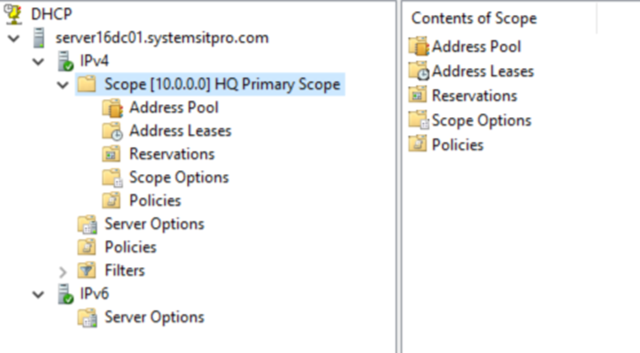
That's it you have now created your first DHCP Scope.
Nano Server - How to Configure iSCSI Target Portal and MPIO on Nano Server Step by Step
Configuring iSCSI Target Portal and MPIO on Nano Server step by step

Before you start
- Review this post where I enabled the iSCSI and MPIO Services.
- Install the iSCSI and MPIO Features on your Nano Server
- Have the iSCSI NIC's configured with their IP's
- Connect to the Nano Server via PowerShell
Configuring iSCSI Target Services
- On the PowerShell session execute the following cmdlet:
#Enable and start the iSCSI Service on the Nano Server.
Set-Service –Name MSiSCSI –StartupType Automatic
Start-Service MSiSCSI
#Setup the iSCSI Target Portal make sure you set all your iSCSI NICS.
New-IscsiTargetPortal –TargetPortalAddress 10.x.x.01
New-IscsiTargetPortal –TargetPortalAddress 10.x.x.02
#Get all iSCSI configured NIC's and initiate the connection and also Multipath.
$Nics = Get-NetIPAddress –AddressFamily IPv4 -InterfaceAlias "(Your iSCSI Adapters)"
Get-IscsiTarget | Connect-IscsiTarget -IsPersistent $True –IsMultipathEnabled $True –InitiatorPortalAddress $Nics.IPAddress
Map Disk From Storage (SAN)
This step may vary depending on your Storage system.- Map Volumes to the Nano Server and then proceed to configure MPIO
Setup MPIO
- Run the following cmdlet to enable MPIO:
Enable-WindowsOptionalFeature -Online -FeatureName MultiPathIOImportant: Microsoft has published a PowerShell script so it configures/claims disks for MPIO.
Download the MPIO on Nano Server Script
- Copy the sample script to a PowerShell and then copy to the Nano Server by utilizing the Explorer if not then the copy-item cmdlet.
- Run the script

Initialize SAN/iSCSI Volumes on the Nano Server
- On a Remote Server Manager session connect to your Nano Server and then navigate to File and Storage Services workspace then select Disks.

- Initialize the SAN(iSCSI) Volumes and then that's it now you have your iSCSI SAN storage configured on your Nano Server.
Subscribe to:
Posts
(
Atom
)


